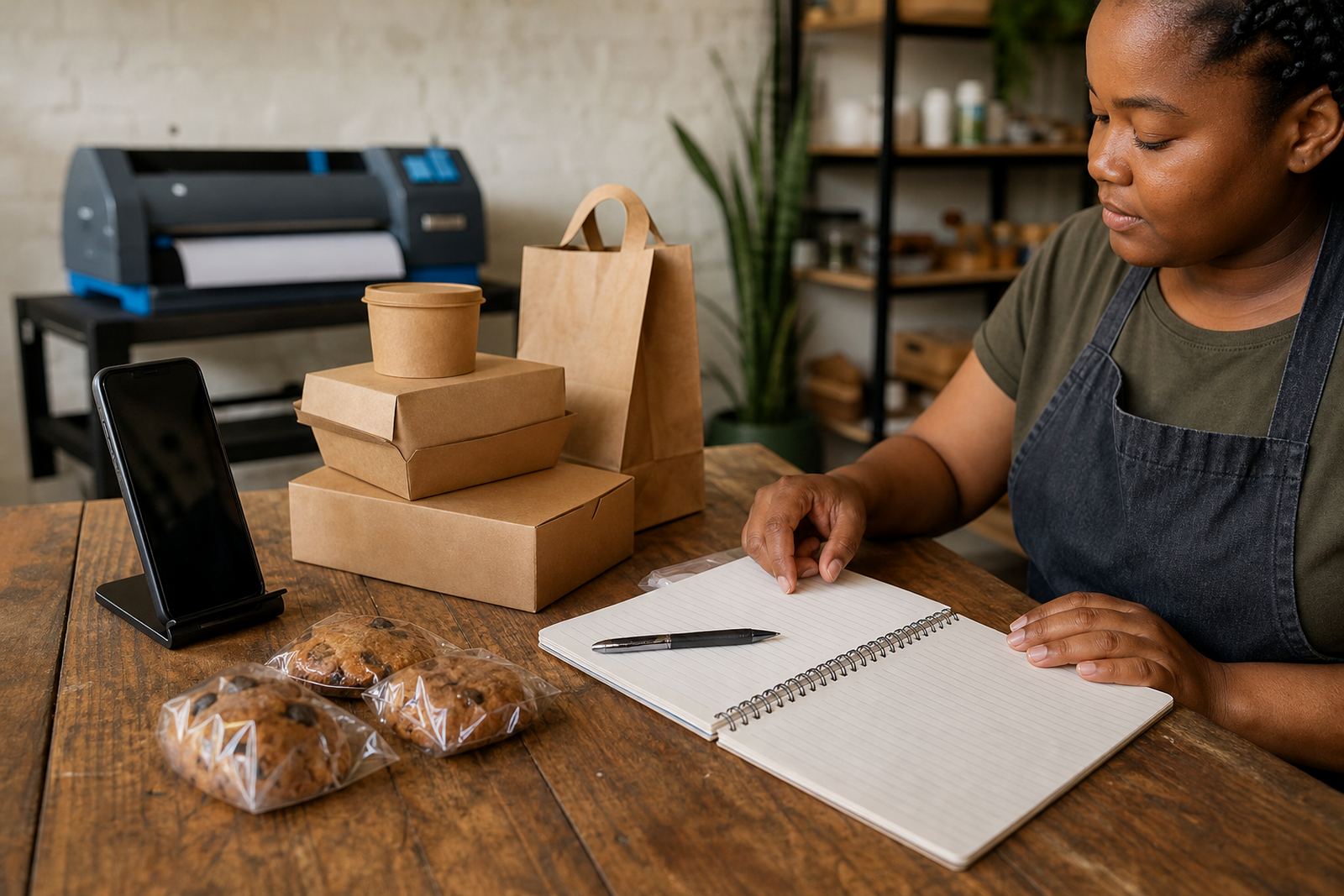


Set up a clean shooting spot at home or in the shop
You do not need a studio to get usable product photos. A quiet corner near a window, a plain wall, a table and a clean cloth are enough for most spaza items, clothing, beauty products and home goods. In Soweto, Johannesburg, many traders work in small spaces, so the main goal is to keep the background simple and the item easy to see.
Natural light is usually best. Take photos during the day, close to a window but not in harsh direct sun. If the light is too strong, thin curtain fabric can soften it. For products that reflect a lot of light, move them a little away from the window so you do not get bright glare on plastic, glass or polished surfaces.
- Choose one plain background in white, grey or a soft neutral colour.
- Wipe the table, cloth and product before each shoot.
- Use the same spot for all your products so the look stays consistent.
- Keep the camera steady with both hands or rest your elbows on a table.
- Take photos when the battery is full and the phone storage has space.
Show the item the way a customer will ask about it
Shoppers want to know exactly what they are getting. If you sell packaged food, soap, shoes, hair products or household items, show the front, back and side where needed. If the product has a label, print date, size mark or colour variation, include that too. For second-hand or handmade items, show any wear, stitching, marks or finish honestly so there are fewer questions later.
A good product image should answer the first few questions before a customer sends a WhatsApp message. That saves time for traders in Durban, Cape Town, Pretoria and Gqeberha, especially when orders come in from different areas and you need to keep the process tidy.
- Take one clear main photo of the full item.
- Add close-up photos of labels, textures, zips, seams or ingredients.
- If the item has a lid, opening or moving part, show it open too.
- Place a known object nearby only if you need to show size, and make sure it does not confuse the listing.
- Avoid filters that change the real colour or shape.
Keep pricing and photo details in step
Photos and pricing work best when they match. If a shopper sees one item in a photo and a different size or pack count in the caption, it creates confusion. When you prepare a product page, check that the image, name, price and pack size all point to the same item. If there are variations, such as different flavours, sizes or colours, separate them clearly.
On a simple store, clear pricing pages help customers move from looking to ordering. Use one image per product where possible, then group related items only when the differences are obvious. If you sell in Johannesburg Traders areas or through home delivery across South Africa, this kind of order keeps your catalogue easier to manage.
- Match each photo with the correct price and size.
- Use the same product name in the image caption and the listing title.
- Show pack quantities clearly, such as single unit, pair or multi-pack.
- Keep special offer photos separate from normal price listings.
- Check spelling on the product name before uploading.
Make WhatsApp orders easy to understand
Many informal traders use WhatsApp as part of the ordering process. Your photos should make that process easier, not more confusing. A customer should be able to send a picture, ask a question and place an order without needing extra explanation about the item. Good images reduce back-and-forth and help you identify the exact product quickly.
For WhatsApp order setup, use a main image that is clean enough to share on its own. If you post a catalogue or product page, keep the first photo simple and let the extra images give more detail. That way a customer can quickly identify the item from a phone screen, whether they are in Alexandra, Tembisa or further afield.
- Use a clear front photo as the main listing image.
- Name each product in plain language, not slang alone.
- Keep the photo size suitable for mobile viewing.
- If colour matters, show each colour option separately.
- Save the same image set for repeat uploads and catalogue updates.
Upload photos that load well on mobile phones
Most shoppers will view your store on a phone, often on a patchy connection. Large, heavy images can slow the page and make it harder to browse. A better approach is to use clear photos that are sharp enough to see but not so oversized that they drag down the page. When you upload, check how the image looks on a small screen, not only on your own device.
If the picture looks stretched, cropped in the wrong place or too dark, fix it before the product goes live. A neat product grid with readable images helps customers move through the store faster. That matters for traders who work from home, from a stall or from a small shop and need their listings to stay manageable.
- Crop away extra floor, wall or clutter around the item.
- Keep the product centred unless a side angle adds useful detail.
- Use the same image shape across similar products.
- Check that the product name and photo still match after upload.
- Open the page on a phone and look for blur, clipping or odd spacing.
A practical photo checklist before each upload
Before you upload new product images, do a quick check. This saves time and keeps your store tidy. A small habit like this is useful when you are rebuilding a catalogue or adding fresh stock after a busy week. It also helps if more than one person handles photos, content or product uploads.
Use this checklist for every new item. If a photo fails more than one point, retake it. A few extra minutes at the start is better than answering repeated questions later or correcting listings one by one. Practical habits matter more than fancy equipment, especially for informal traders growing online.
- The item is clean and the background is plain.
- The photo is bright, in focus and not tilted badly.
- The image shows the real colour as closely as possible.
- The product name, size and price match the photo.
- There is at least one close-up where detail matters.
- The final image looks good on a mobile screen.
- The file is saved and ready for upload.
If you are unsure about pricing, delivery wording or tax treatment, check with SARS or a qualified adviser. For store setup help, product upload help and content writing, keep your process simple and consistent from the first photo to the final listing.